
How to Save a Downloaded TikTok Video to iPhone Photos and Android Gallery
 By SSS-TIK•
•
2 min read
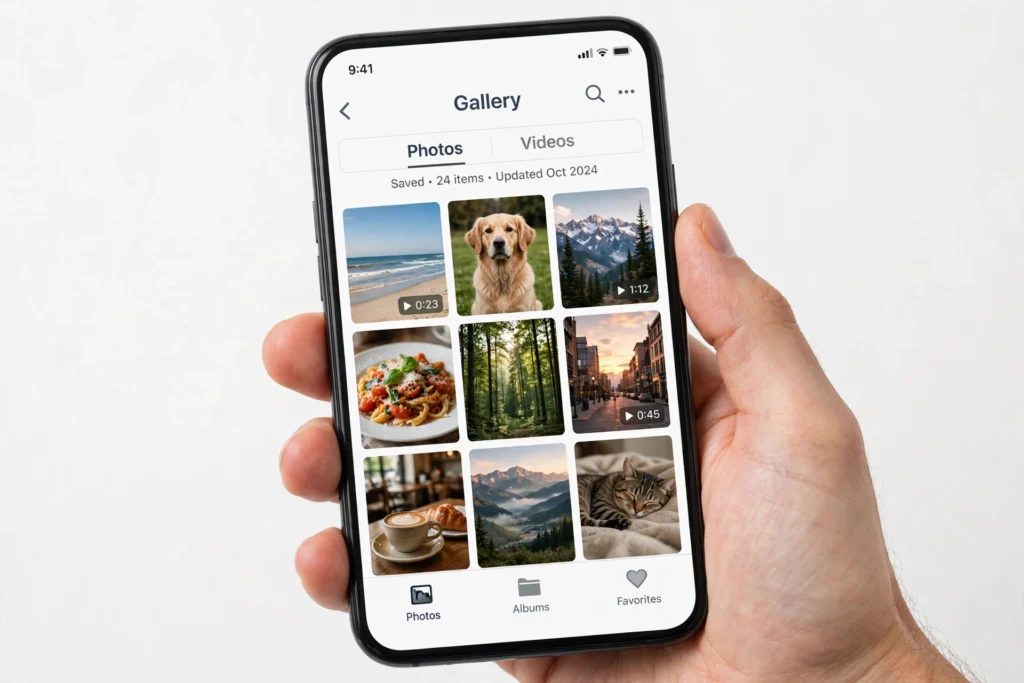
Downloaded a TikTok video but cannot find it? This guide shows how to save a downloaded TikTok video to iPhone Photos and Android Gallery after using the free SSS TikTok Downloader.
Steps on iPhone
- Download the video with the SSS TikTok Downloader, as in How to Download a TikTok Video Without Watermark on iPhone.
- When the video opens, tap Share, then Save Video or Save to Files, then open Files and save it to Photos if needed.
- Open the Photos app and check the video appears in Recents.
Steps on Android
- Download the video with the SSS TikTok Downloader, as in How to Download a TikTok Video Without Watermark on Android.
- Open your browser’s Downloads folder or the Files app and find the video file.
- Tap the video, then choose to move or copy it to your Gallery or DCIM folder if it is not showing there yet.
If the Video Is Not in Your Gallery
Check that the download finished, that you have storage space, and that Photos or Gallery has permission to access files. Restart the gallery app, and search for the file name in Files. For a video that will not download at all, see Why a Private, Deleted or Error TikTok Video Cannot Be Downloaded, and How to Fix Common Errors.
FAQ
Why does the video go to Files instead of Photos? Browsers often save to Downloads first. Moving the file to Photos or Gallery makes it easy to find and share later.
Can I save photos the same way? Yes. See How to Download a TikTok Slideshow and Photo Post.
Related: How to Download a TikTok Video Without Watermark on PC and Mac.

Content team at SSS-Tik. Sharing helpful guides, tips and updates for a better video experience.