
How to Use a Downloaded TikTok Video in a Canva Design
 By SSS-TIK•
•
4 min read
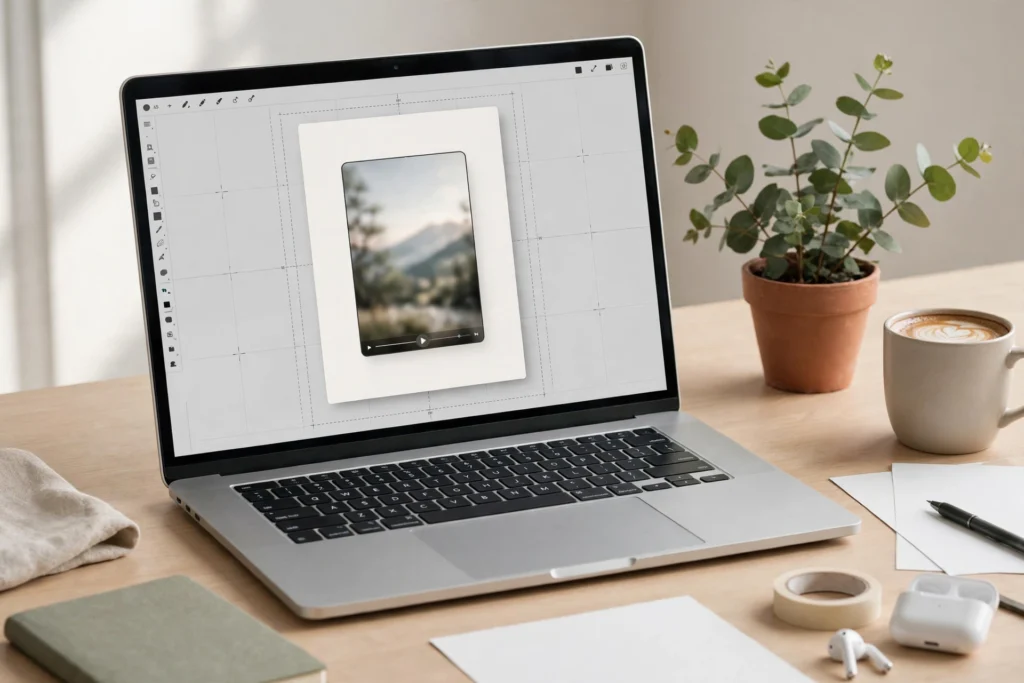
Canva is a popular way to turn a short clip into a poster, a story or a presentation slide. If you have a downloaded TikTok video you want to use in a design, you do not need to record your screen or rebuild the video from scratch. You can drop a clean MP4 into Canva and place it like any other video. This guide explains how to use a downloaded TikTok video in a Canva design, what Canva will accept, and how to use it fairly.
Download a Clean MP4 First
Start with a good copy of the video. If the creator allows downloads, tap Share in TikTok and then Save video. If that button is missing, copy the link and download the video with SSS TikTok Downloader. Save the MP4 to your phone or computer, play it once to check it is complete, and note the creator’s username so you can credit them in your design. Only use a video you have the right to reuse, as explained below.
Upload the Video to Canva
Open Canva and create or open a design. Choose the right size first: a poster is usually portrait or A4, a story is vertical, 1080 by 1920 pixels, and a presentation slide is usually 1920 by 1080 pixels in landscape. Then go to Uploads in the left menu and tap Upload files. Choose the MP4 from your device. Canva will upload it to your Uploads library, and you can then drag it onto your design.
Once the video is on the canvas, drag its corners to resize it, and drag it to move it into place. You can crop it, trim the start and end, and add text, shapes or other Canva elements around it. For a story, fill the whole vertical frame with the video. For a poster, place the video in a frame and add a headline below it. For a presentation, keep the video on one slide and add a short caption that explains what it shows.
Canva Upload and Format Limits
Canva accepts MP4 videos, along with MOV, M4V and WEBM in many cases, but MP4 is the safest choice. The file must be under Canva’s size limit, which depends on your plan: free accounts can upload videos up to 1 GB, while Canva Pro allows larger files. Most TikTok videos are only a few megabytes, so size is rarely a problem. If your file is too large, trim it first, or export a shorter clip before you upload it.
Canva also has limits on length and on how many uploads you can store, and a very long video may take a while to upload on a slow connection. Use Wi-Fi, keep the Canva tab open until the upload finishes, and check that the video plays in your design before you download or share it. If Canva says the format is not supported, convert the file to MP4 first, as explained in our guide on converting a downloaded TikTok video to MOV, AVI or another format. For more on sharing videos to other platforms, see our guide on sharing as a Facebook Reel or Snapchat Spotlight.
Safety note: Credit the creator, and use only videos you have the right to reuse. Add the creator’s name in your design or in the caption, ask permission if you are not sure, and do not claim the video as your own work. Downloading a video does not give you the right to use it in a commercial design without permission.
FAQ
Can I upload a TikTok video to Canva?
Yes, if it is an MP4 file and under Canva’s size limit. Upload it through Uploads, then drag it onto your poster, story or presentation design.
What video format does Canva accept?
Canva accepts MP4, and usually MOV, M4V and WEBM as well. MP4 is the safest choice, and it works for most TikTok videos.
How large can a video upload be in Canva?
Free Canva accounts can upload videos up to 1 GB. Most TikTok videos are far smaller than that, so size is rarely a problem.
Can I use someone else’s TikTok video in my Canva design?
Only if you have the right to reuse it. Credit the creator, ask permission when you are not sure, and do not use the video in a commercial design without permission.

Content team at SSS-Tik. Sharing helpful guides, tips and updates for a better video experience.