
How to Download a TikTok Video in a Browser Without Installing an App
 By SSS-TIK•
•
5 min read
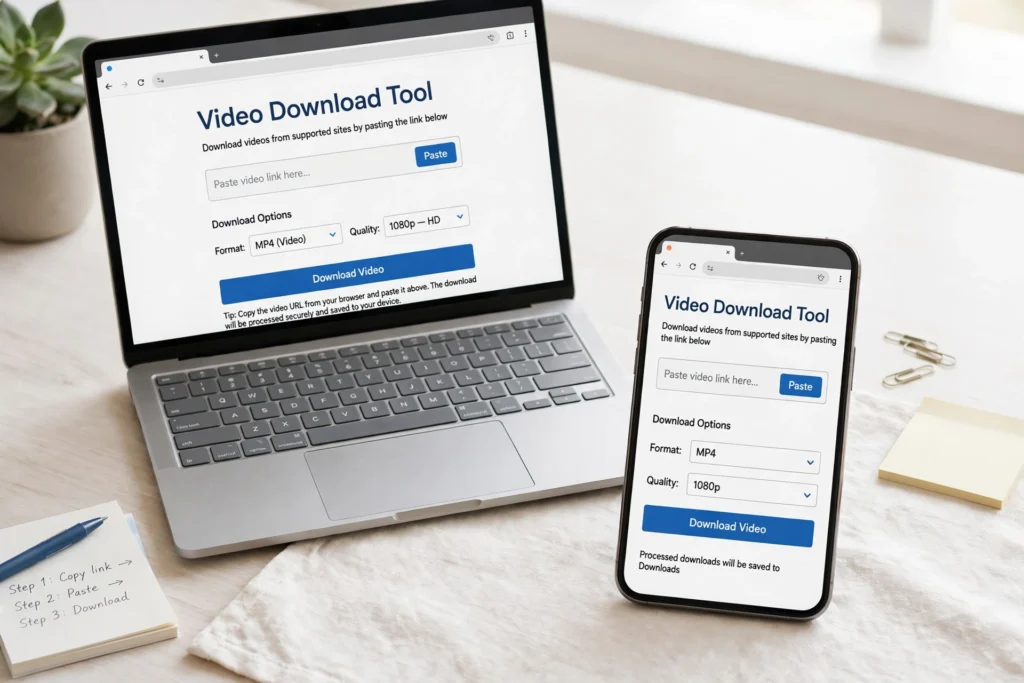
Downloading a video straight from your web browser is the simplest option when you do not want another app on your phone or computer. You can download a TikTok video in a browser using only the browser you already use, a copied video link, and a web-based downloader. This guide shows the full browser workflow, what to do when a download does not start, and how to keep the file organised afterwards.
Use SSS TikTok Downloader in your browser whenever you need a quick, no-install download. It works from the same page on a phone, tablet, laptop or desktop browser, so you do not need to learn a different method for each device.
Why a Browser Download Is Useful
A browser download is useful when your storage is full, when you are using a shared or work device, or when you only need one video and do not want a permanent app for it. You also avoid app permissions, background updates and extra accounts. The trade-off is simple: you need a stable internet connection and the original video link, because the browser cannot reach a video that is private, deleted or restricted.
Step-by-Step: Download a TikTok Video in a Browser
- Open TikTok in your browser. Go to TikTok in Chrome, Safari, Edge or Firefox and open the video you want to keep. Make sure the video plays and is public.
- Copy the video link. Use the Share button on the video and choose Copy link. On a computer, you can also copy the address from the browser address bar while the video page is open.
- Open the tool in a new tab. Open SSS TikTok Downloader in a new browser tab. Keep the TikTok tab open so you can go back if the link does not paste correctly.
- Paste the link and start the download. Paste the copied link into the download box on SSS TikTok Downloader and follow the on-screen button to prepare the video. Choose the video file, not an unrelated preview, if more than one option appears.
- Save the file in your browser. When the browser asks where to save the file, choose Downloads or a folder you will remember. On a phone, the file usually goes to Downloads or your Files app first.
- Check the saved video. Open the file once, play the first few seconds, and check the sound. If it plays correctly, you can move it, rename it or share it from your own device.
Browser Tips That Prevent Common Problems
- Use one tab for TikTok and one for the downloader. Switching between tabs is safer than closing TikTok before you have pasted the link.
- Allow downloads for the site if your browser asks. Some browsers block the first download until you confirm it. Confirm once, then try again.
- Do not paste a shortened or edited link. Use the full link copied from TikTok. If you received a short link, open it first so it resolves to the real video page, as explained in our guide to how vm.tiktok.com and vt.tiktok.com short links work.
- Keep the browser updated. An old browser can fail on newer video pages even when the link itself is correct.
After the Download: Find and Keep the File
After a browser download, the file is not automatically in your photo gallery on every device. On a computer it will normally be in Downloads. On a phone you may need to move it from Files to your gallery. For the phone steps, see how to save a downloaded TikTok video to iPhone Photos and Android Gallery.
Safety Note
Only download public videos for personal viewing or backup. Only reuse, repost or edit a video if it is your own video or you have the creator’s permission. Do not download private videos, do not claim someone else’s work as your own, and do not share a downloaded video in a way that harasses or misleads others. For more on creator rights, read safe use of TikTok downloads and creator rights.
Frequently Asked Questions
Do I need to install anything to download in a browser?
No. A browser download is designed to work without an app install. You only need a modern browser, the video link and enough storage for the file.
Does a browser download work on a phone and a computer?
Yes. The steps are the same in principle: copy the link, paste it in the browser downloader, and save the file. The only difference is where each device stores the downloaded file.
Why did my browser download not start?
Check that you allowed downloads, that the link was copied completely, and that the video is still public. Try pasting the link again in a fresh tab. If the video is private or deleted, a browser downloader cannot retrieve it.
Is the downloaded video saved without a watermark?
That depends on the download option you choose on the downloader page. Always preview the result and choose the clean video file if that is what you need, then respect the creator’s rights when you use it.

Content team at SSS-Tik. Sharing helpful guides, tips and updates for a better video experience.