
How to Convert a Downloaded TikTok Video to a GIF
 By SSS-TIK•
•
2 min read
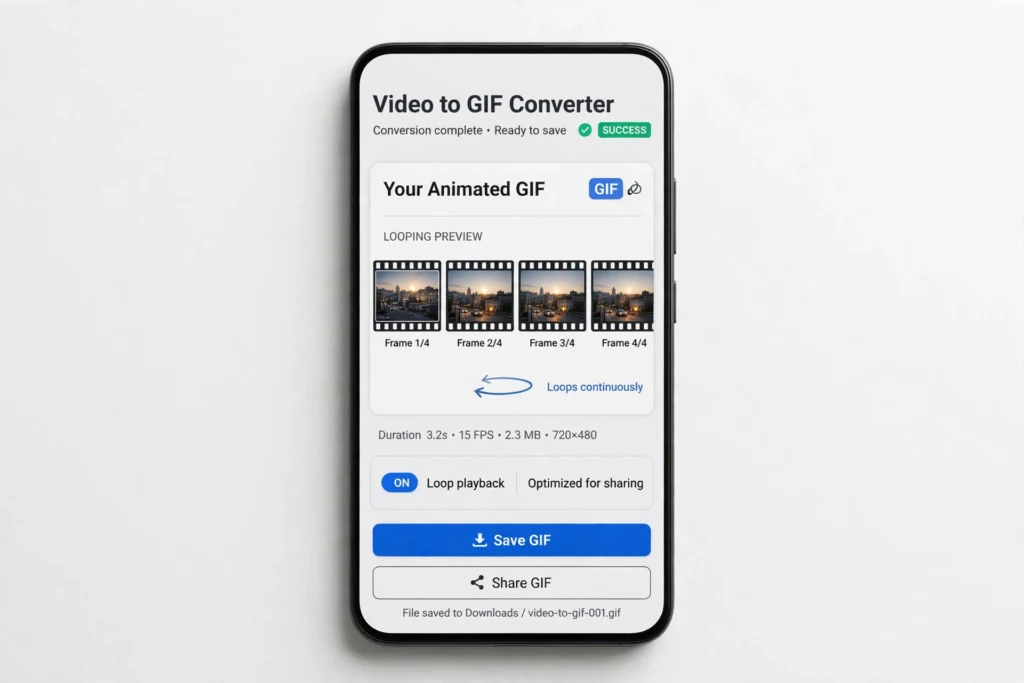
A short, looping GIF is perfect for a reaction, a funny moment, or a highlight that you want to share anywhere. You cannot make a good GIF from a TikTok link alone; you need the video file first, then a converter to trim it. This guide shows that full path, starting with SSS TikTok Downloader.
Steps: Convert a Downloaded TikTok Video to a GIF
- Download the video first. Copy the link of a public TikTok video, open SSS TikTok Downloader, paste the link, and save the video file.
- Choose the best few seconds. A GIF works best at 2 to 6 seconds, so note the start and end times of the moment you want.
- Open a trusted GIF converter on your phone or computer, upload the downloaded video, and trim it to that short segment.
- Set the size and frame rate. A smaller width and a moderate frame rate keep the file small enough to share without losing the joke.
- Export as GIF, preview the loop, and save the file with a clear name.
Tips for a Clean GIF
Keep text readable, avoid fast cuts that look messy in a loop, and test the GIF in a chat app before you send it widely. If the file is too large, shorten it or lower the resolution rather than adding more seconds. For other ways to reuse a saved video, see How to Convert a TikTok Video to MP3 Audio and How to Edit a Downloaded TikTok Video.
Safety Note
Only convert public videos, and only share a GIF if it is your own video or you have the creator’s permission. Credit the creator when you post a GIF made from their work.
FAQ
Does a GIF have sound? No, GIFs are silent images that loop, so choose a visual moment that works without audio.
Why is my GIF file so large? Long clips and high frame rates make large files. Trim the length first, then reduce the size.
Can I convert a whole TikTok video to a GIF? You can, but it will be large and less useful. A short highlight makes a much better GIF.

Content team at SSS-Tik. Sharing helpful guides, tips and updates for a better video experience.