
How to Edit a Downloaded TikTok Video in InShot Before Sharing It
 By SSS-TIK•
•
5 min read
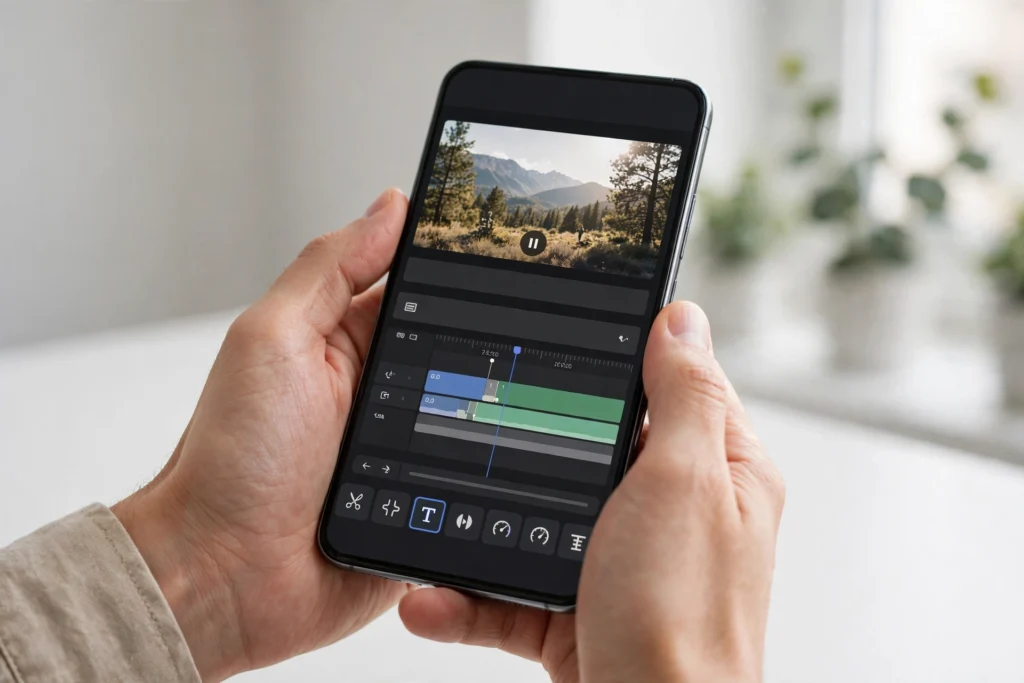
Learning how to edit a downloaded TikTok video in InShot before sharing it is the fastest way to polish a clip on your phone. InShot is a simple video editor for Android and iPhone, and it lets you trim a clip, add text, adjust the speed, and fix the framing in a few minutes. You do not need editing experience, and you do not need a computer.
In this guide, you will first download a TikTok video with SSS TikTok Downloader, then open it in InShot and make a quick edit. By the end, your video will be ready to share on any platform.
What You Need Before You Start
You need the InShot app installed on your phone, the downloaded TikTok video saved in your gallery or camera roll, and a few minutes of free time. Check that the video is public and that you have the right to edit and share it. If it is someone else’s video, ask for permission first and credit the creator when you share the edited version.
Step 1: Download the TikTok Video
Open TikTok, play the video you want to edit, tap the Share arrow, and tap Copy link. Open your browser and go to SSS TikTok Downloader. Paste the link, tap the download button, and choose the highest MP4 quality. Save the video to your phone, and check that it plays fully with sound before you open InShot.
Step 2: Open the Video in InShot and Trim It
Open InShot and tap Video, then choose New and select your downloaded TikTok video. The clip appears on the timeline at the bottom of the screen. Tap Trim to cut off the start or end of the video, and drag the handles to keep only the best part. Tap Split to cut the video in the middle and remove a boring section. Preview the result before you move on.
Step 3: Add Text to Your Video
Tap Text in InShot to add words to your video. Type a short title, a caption, or the creator’s name, and choose a font, colour, and size that is easy to read. Drag the text to the right place on the screen, and set how long it stays visible by dragging its edges on the timeline. Keep the text short, because viewers only have a few seconds to read it. Use text to explain the video, not to repeat everything in it.
Step 4: Adjust the Speed and Finish the Edit
Tap Speed in InShot to change how fast the video plays. Speed it up to fit a short format, or slow it down to show an important moment in detail. You can also tap Canvas to change the video size for the platform you plan to share it on, and tap Music to add a sound if you need one. When you are happy with the edit, tap Export, choose the highest quality, and save the finished video to your phone.
Tips for a Clean InShot Edit
Keep your edit simple. One trim, one piece of text, and one speed change is often enough. Watch the whole video after each change, so you catch mistakes early. Avoid adding too many effects, because they can distract from the video itself.
Troubleshooting Common Problems
If InShot cannot find your video, check that the download finished and that the file is in your gallery. If the exported video looks blurry, export it again at the highest quality. If the app crashes, close it and restart your phone. If the text is hard to read, choose a bigger font or a colour that stands out from the background.
Safety Note: Edit and Share Responsibly
Only edit and share TikTok videos you have the right to use, and always respect the creator. Do not remove credit, do not claim someone else’s video as your own, and do not use an edited video for commercial purposes without permission. Download and edit only from trusted apps and sites, and keep InShot and your phone up to date.
Frequently Asked Questions
Can I edit a downloaded TikTok video in InShot for free?
Yes. InShot’s basic tools, including trim, text, and speed, are free. Some extra effects and stickers need a paid version, but a quick edit does not.
How do I trim a TikTok video in InShot?
Open the video in InShot, tap Trim, and drag the handles to keep only the part you want. Tap Split to cut the video in the middle and remove a section.
Will editing in InShot lower the video quality?
Not if you export at the highest quality. Always choose the best export setting in InShot, and start with the highest quality download you can get.
Now you know how to edit a downloaded TikTok video in InShot before sharing it, from trimming and adding text to adjusting speed. Use the steps above to polish your clips on your phone and share them with confidence. For more editing ideas, see our guide on how to trim or cut a downloaded TikTok video before sharing it.

Content team at SSS-Tik. Sharing helpful guides, tips and updates for a better video experience.