
How to Check a TikTok Video Before Downloading: Public, Private or Deleted
 By SSS-TIK•
•
4 min read
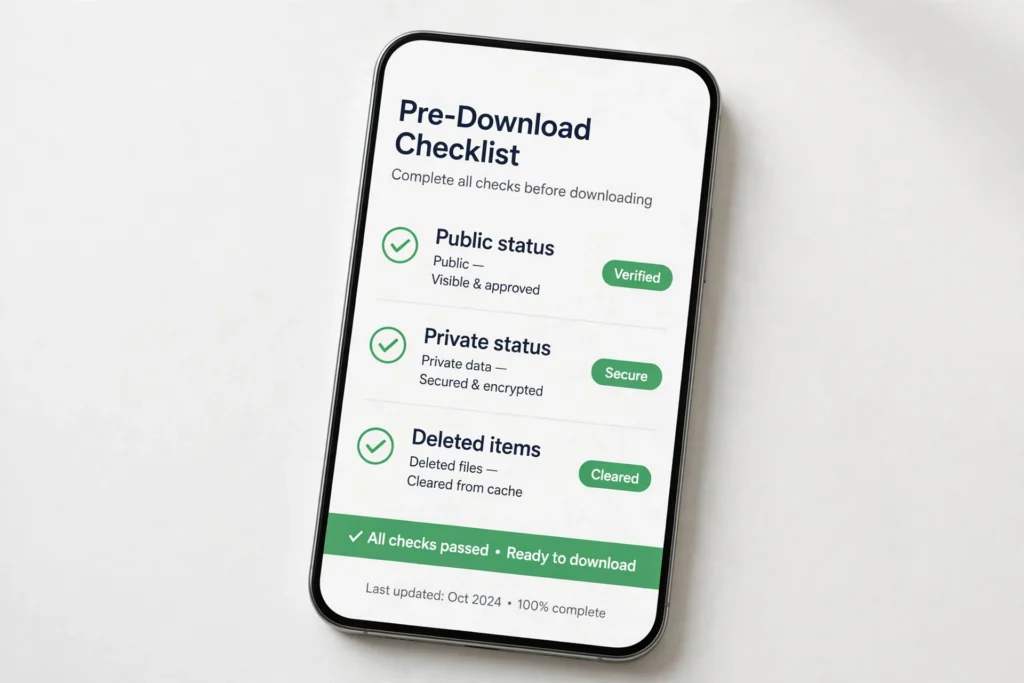
Thirty seconds of checking before you download can save you from a failed save, a wrong file or a wasted link. This is a pre-download check for TikTok videos: a short routine you run before you paste anything, so you know whether a video is public, private or deleted, and whether it is the right video at all.
Only after those checks should you open SSS TikTok Downloader and save the video. Checking first is faster than downloading first and wondering why the result is wrong.
The Pre-Download Checklist
- Play the video in TikTok. Open the video page itself, not just a preview card. If it plays with sound and picture, it is at least currently available to you.
- Check the creator and title. Confirm the account name, the video title and the date match what you expected. A similar thumbnail from a different creator is the most common wrong-download mistake.
- Look for privacy signals. If TikTok says the video is unavailable, requires sign-in for content you normally see publicly, or shows a private-account notice, treat it as not downloadable. Do not try to force it.
- Check whether the video is still there. A link saved weeks ago may point to a video that has since been deleted or removed. Opening the page fresh tells you the current status, not the status when the link was first shared.
- Confirm the link is complete. Copy the link from Share, then check that it starts with https:// and contains tiktok.com. If it is short, open it in the browser first so it resolves, as explained in our guide to how vm.tiktok.com and vt.tiktok.com short links work.
- Decide what you will do with the file. Before downloading, decide whether this is for personal viewing, your own backup, or a reuse that needs permission. That decision affects whether you should download at all.
What Each Status Means for Downloading
- Public: The video plays for anyone with the link. It is the only status you should download from, and only for personal use or with permission for reuse.
- Private: The video is restricted to the creator or approved viewers. A browser downloader should not be used to bypass that restriction.
- Deleted or removed: The page no longer shows the video. No link trick will bring it back, and you should stop and look for a reposted public version only if the creator shared one themselves.
After Checking: Download and Save
If every check passes, open SSS TikTok Downloader, paste the verified link, and save the video. Then, if you want the file in your gallery, see how to save a downloaded TikTok video to iPhone Photos and Android Gallery.
Safety Note
Only download public videos, and only reuse, repost or edit a video if it is your own or you have the creator’s permission. Checking first is also a safety habit: it stops you from sharing a video that was made private, deleted or taken down for a reason. See safe use of TikTok downloads and creator rights.
Frequently Asked Questions
How can I tell if a video is private before downloading?
Open the video page in TikTok. If it shows a private-account or unavailable notice instead of playing publicly, treat it as private and do not download it.
What if the video played yesterday but not today?
Its status may have changed, or it may have been deleted. Check the page again fresh, and do not rely on yesterday’s link or preview.
Does a working link guarantee a download?
No, but it is the best first sign. A complete, public, currently playing video is the only kind you should attempt to download.
Should I check even for my own videos?
Yes, especially for your own backup. Confirming your own video is still public before you save it prevents you from archiving the wrong clip under the wrong name.

Content team at SSS-Tik. Sharing helpful guides, tips and updates for a better video experience.