
How to Save Downloaded TikTok Videos to Google Drive / Cloud Storage
 By SSS-TIK•
•
2 min read
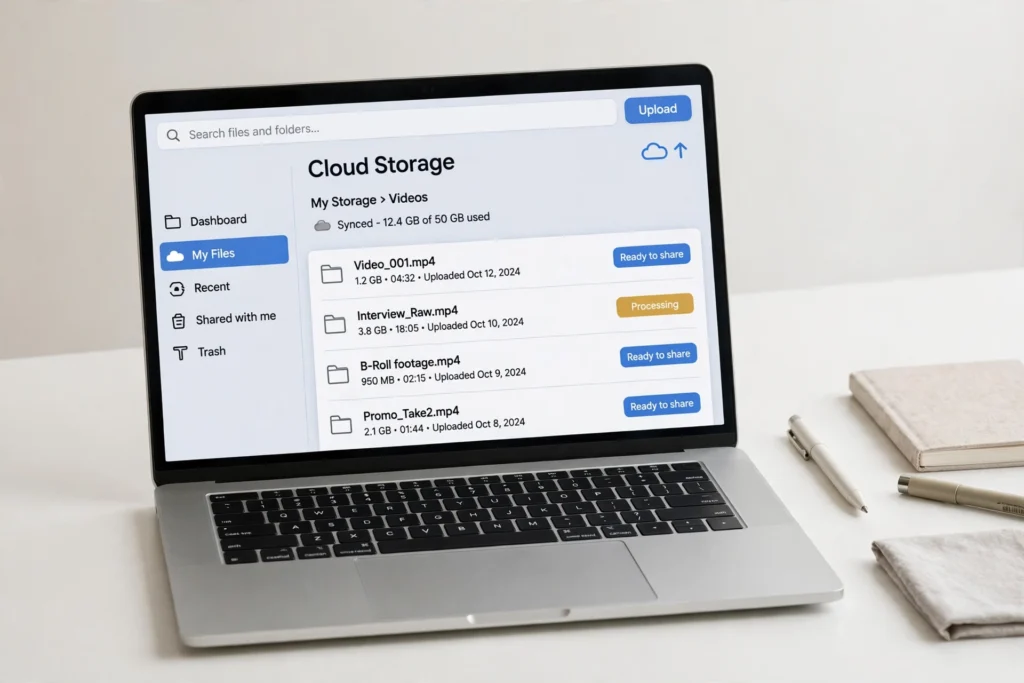
Phones fill up fast, and a lost phone should not mean lost videos. Saving your downloaded TikTok videos to Google Drive or another cloud service keeps them safe, backed up, and available on any device. This guide shows the simple upload routine, starting with SSS TikTok Downloader.
Steps: Save Downloaded TikTok Videos to Google Drive
- Download the video first. Copy the link of a public TikTok video, open SSS TikTok Downloader, paste the link, and save the file to your phone or computer.
- Open Google Drive in your browser or app, and create a folder called TikTok Videos, with subfolders by creator or topic if you like.
- Upload the saved file to that folder, and wait for the upload to finish before you close the app.
- Check the file in Drive, play a few seconds, and confirm the name and date are clear.
- Delete the local copy only if you need space, and only after you have confirmed the cloud copy plays correctly.
Organizing Cloud Storage
Use consistent names, avoid duplicate uploads, and star the folders you use most. If you work on a computer, the Drive desktop app can sync a folder automatically, but always check that large videos have finished syncing. For organizing ideas, see How to Organize Downloaded TikTok Videos by Creator or Topic and How to Save Downloaded TikTok Videos to SD Card.
Safety Note
Only upload public videos you are allowed to keep, and only share a Drive folder if you have permission to share the clips inside it. Keep your Google account secure, and do not share a folder publicly if it contains other people’s work.
FAQ
Can I upload directly from a downloader to Google Drive? Most web downloaders save to your device first, then you upload to Drive. That two-step process is normal and reliable.
Will Google Drive compress my videos? Drive stores the file as uploaded, but playback in the browser may stream a preview version. Download the original file again if you need full quality.
What if I run out of Drive space? Delete duplicates, move old files to another drive, or upgrade storage only if you truly need it.

Content team at SSS-Tik. Sharing helpful guides, tips and updates for a better video experience.