
How to Save Downloaded TikTok Videos to an External Hard Drive or USB Drive from Your Phone
 By SSS-TIK•
•
5 min read
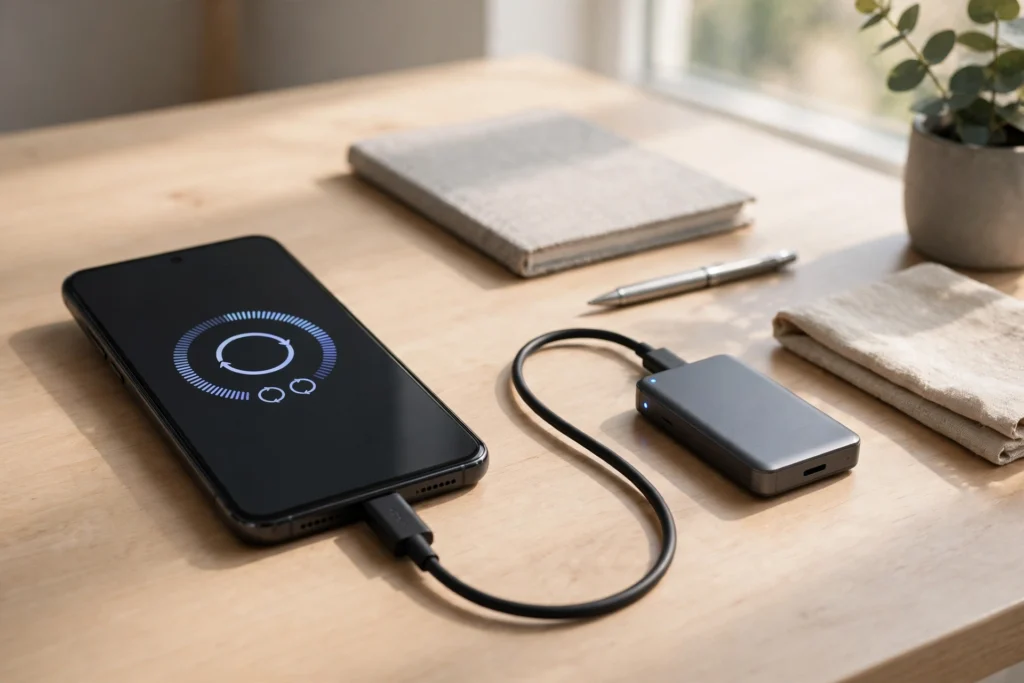
Learning how to save downloaded TikTok videos to an external hard drive or USB drive from your phone is the best way to free up space without losing your favourite clips. Phones fill up fast, and TikTok videos add up quickly. With a USB-C drive or an OTG cable, you can move videos off your phone, keep a backup, and watch them later on a computer or TV.
What You Need
First, download the TikTok videos to your phone with the SSS TikTok Downloader, so you have the files ready to move. Then you need one of these: a USB-C flash drive that plugs straight into your phone, or a standard USB drive plus an OTG cable (a small adapter that lets your phone read a USB drive), or an external hard drive with its own cable. Check that the drive has enough free space, and that it is formatted in a way your phone can read, such as exFAT or FAT32.
Move Videos to a USB-C Drive on Android
Plug the USB-C drive into your Android phone. Open your file manager app, find your downloaded TikTok videos in the Downloads folder, and select the ones you want to move. Tap Move or Copy, then open the USB drive in the file manager and paste them into a folder. Wait until the transfer finishes before you unplug the drive — removing it too early can corrupt the files. Once the copy is done, check that the videos play from the drive, then delete them from your phone to free space.
Move Videos to a Drive with an OTG Cable
If you have a normal USB drive or an external hard drive, plug it into an OTG cable, then plug the cable into your phone. Your phone should show a notice that a USB device is connected. Open your file manager, select the TikTok videos you want to keep, and copy or move them to the drive, just as above. Some hard drives need more power than a phone can give, so use a drive with its own power supply, or a powered USB hub, if the drive does not show up. Always eject the drive safely from the file manager before you unplug it.
Move Videos from an iPhone
On an iPhone, plug in a USB-C or Lightning flash drive made for iPhone, then open the Files app. Find your downloaded videos, select them, tap Share, and save them to the drive. You can also move videos to your computer first, then copy them to an external hard drive from there. For more on storing clips on Apple devices, read our guide on how to save downloaded TikTok videos to iCloud or iCloud Drive on iPhone. For the desktop route to download videos first, see our guide on how to download a TikTok video from the TikTok website on a desktop.
Keep a Backup and Free Up Space
Once your videos are on the drive, keep the drive in a safe place, and consider a second copy on your computer or in cloud storage for the clips that matter most. A single drive can fail, so a backup of a backup is worth it for videos you cannot download again. Label the drive or its folders clearly, so you can find a video later without plugging in every drive you own. After you have checked that the copies play properly, delete the originals from your phone to free up space. Your phone will run faster, and you will have room for new videos.
Safety Note
Only move videos you downloaded for personal use, and respect the creator. Do not share or sell a backed-up copy without permission, and do not claim it as your own. Keep your drive safe, because anyone who finds it can watch the videos on it. If a video is private or sensitive, think twice before copying it to a drive that other people can access.
FAQ
What is an OTG cable?
An OTG cable is a small adapter that lets your phone read a standard USB drive or hard drive. Plug the drive into the cable, then plug the cable into your phone.
Can I move TikTok videos straight to an external hard drive from my phone?
Yes, if your phone can power the drive. Use a USB-C drive, or an OTG cable with a drive that has its own power supply if needed.
Should I copy or move the videos to the drive?
Copy first, check that the videos play from the drive, then delete them from your phone. That way you do not lose a video if the transfer fails.
Why does my phone not see the USB drive?
The drive may need more power, or it may be in a format your phone cannot read. Try a powered hub, or reformat the drive to exFAT after backing up its contents.

Content team at SSS-Tik. Sharing helpful guides, tips and updates for a better video experience.