
How to Download Your Own TikTok Videos as a Backup
 By SSS-TIK•
•
4 min read
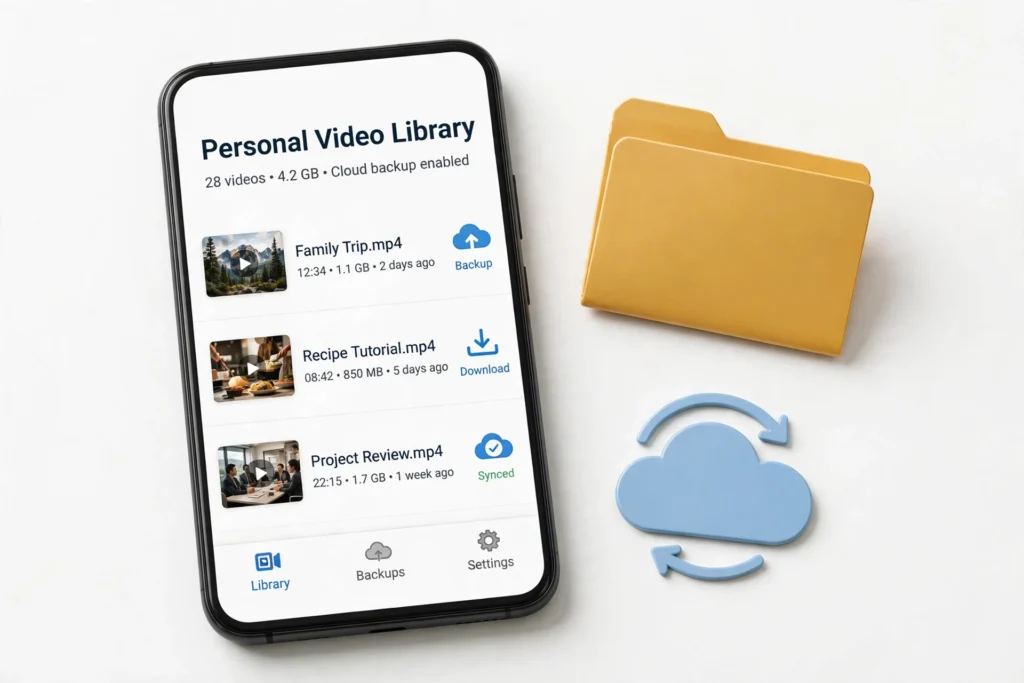
If TikTok is the only place your videos live, a single deleted account, lost phone or removed clip can erase work you cannot recreate. Making a backup of your own TikTok videos gives you a personal copy you control, separate from the app. This guide focuses only on your own uploads: how to collect them in an organised way, how to check each backup, and how to store copies safely.
For each video you own, use SSS TikTok Downloader in your browser to save a clean copy. That copy is for your archive, not for republishing someone else’s content.
What a Good Backup Looks Like
A useful backup is complete, labelled and stored in two places. Complete means you have the final version of each video, not just a draft or a preview. Labelled means the file name tells you what the video is and when you made it. Stored in two places means a second copy exists if one drive, phone or cloud folder fails. A folder full of files named video1, video2 and video3 is not a backup you can find anything in later.
Step-by-Step: Back Up Your Own TikTok Videos
- List the videos you want to keep. Open your own TikTok profile and scroll through your published videos. Note any series, popular clips or videos that took real editing time, and back those up first.
- Copy one video link at a time. Open your own video, use Share, then Copy link. Working one at a time prevents a wrong link from being saved under another video’s name.
- Save the video with the tool. Open SSS TikTok Downloader, paste your own video link, and download the video file. Save it straight into a folder called TikTok Backup, with a subfolder for the year if you post often.
- Rename the file immediately. Use a clear pattern, for example 2026-11-04-cooking-tip.mp4 or a short description of the topic. Do this before you download the next video, while the title is still fresh in your mind.
- Play the saved file. Open the backup, watch it fully, and check the picture and sound. A backup you never tested is only a hope, not a copy.
- Make a second copy. Copy the finished folder to a second place, such as an external drive or a private cloud folder you control. Keep that second copy private, just like the first.
Organising a Growing Backup
- Separate originals from edits. Keep the downloaded final version in one folder and any new edits in another, so you never overwrite the only clean copy.
- Keep a simple list. A short note with the video title, date and folder name helps you find a clip months later without opening every file.
- Check your backup every few months. Open a few old files to confirm they still play. Replace any file that will not open while you still have a chance to save it again from your account.
After Downloading: Move Copies to Your Gallery
On a phone, a downloaded file may sit in Downloads rather than in Photos or Gallery. If you want a backup copy visible in your gallery app as well, follow how to save a downloaded TikTok video to iPhone Photos and Android Gallery.
Safety Note
Back up only your own videos, or videos you have clear permission to keep. Do not build a backup library from other creators’ videos, do not repost their work as your own, and do not share a private or restricted video. For the creator-rights rules that apply even to your own archive, read safe use of TikTok downloads and creator rights.
Frequently Asked Questions
Is a downloaded copy the same as my TikTok draft?
No. A draft lives inside the app and can be lost with the app data. A downloaded file is a separate copy on your device or drive, which is exactly why it works as a backup.
Should I back up every video, or only the important ones?
Back up the videos you would miss first: popular clips, series, collaborations you have permission to keep, and videos with editing you cannot easily redo. You can add the rest later.
What if a video I own is no longer on my profile?
If it was removed or deleted, a browser downloader cannot retrieve it from TikTok. That is why regular backups matter: save the copy while the video is still published on your own profile.
Can I use a backup to repost my own video elsewhere?
Yes, for your own original video, a backup lets you repost it on another platform you use. Check that any music, clips or other people’s material in the video still allows that use before you publish it again.

Content team at SSS-Tik. Sharing helpful guides, tips and updates for a better video experience.