
How to Download a TikTok Video With Captions
 By SSS-TIK•
•
4 min read
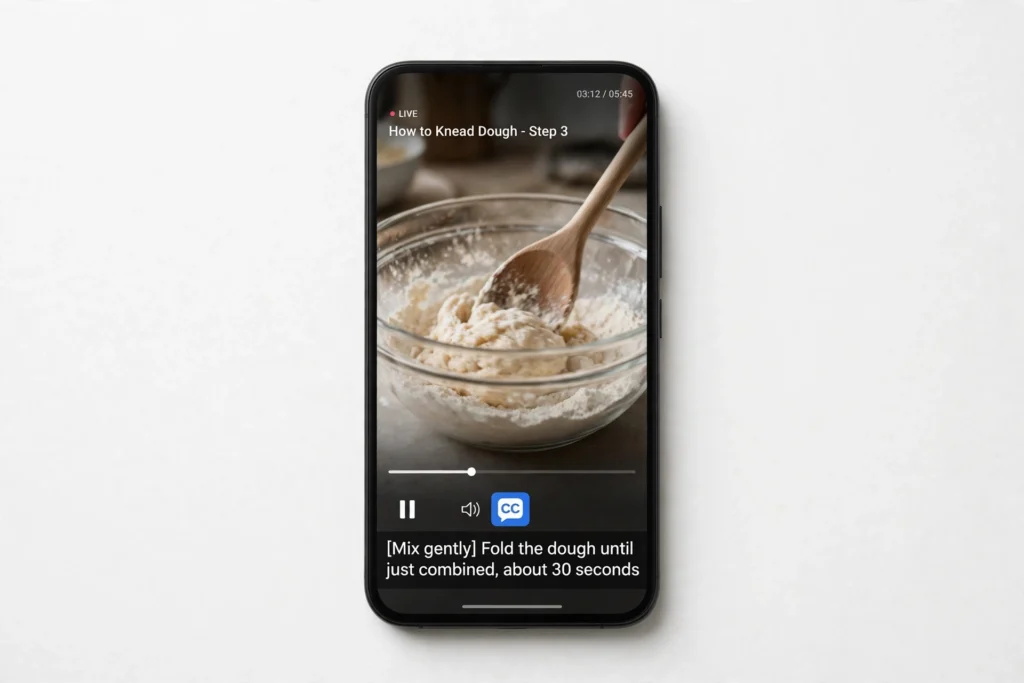
Captions on TikTok can be on-screen text, auto-generated subtitles, or the written description under the video. Whether they survive a download depends on which kind they are. This guide explains how to download a TikTok video with captions, what to check before you save, and what to do when captions disappear.
Start with SSS TikTok Downloader in your browser. The video file you save there is the starting point for checking captions, not a guarantee that every caption type will be included.
Know Which Captions You Mean
- On-screen text: Text the creator added in the video itself, such as titles or labels. This text is part of the picture, so it stays in any video download.
- Auto subtitles: TikTok’s spoken-word subtitles that can be turned on or off. These are often a separate layer, so they may not be in a plain video file.
- Video description: The written caption under the video, with hashtags. This is text on the TikTok page, not inside the video file, so you must save it separately if you need it.
Step-by-Step: Download With Captions
- Turn captions on in TikTok first. Play the video, enable subtitles if available, and watch to confirm the captions match the speech. If they do not appear in TikTok, they will not appear in a download either.
- Copy the video link. Use Share, then Copy link, while the video is still open.
- Download the video with the tool. Open SSS TikTok Downloader, paste the link, and save the video file. Play it back and look for on-screen text first: that should be visible in the saved file.
- Check for subtitles in the saved file. Play the file in a player that shows subtitle tracks, and look for a subtitle option. If no subtitle track exists, the auto subtitles were not part of the downloaded file.
- Save the description separately if you need it. Copy the video description from the TikTok page into a text note, with the video title and date. Keep that note with the video file, so the caption text is not lost even if it is not inside the video.
- Label the file clearly. Name the file with a note such as with-captions or captions-in-note, so you know later whether subtitles are inside the file or only in your text note.
Why Captions Sometimes Disappear
Auto subtitles are generated and displayed by TikTok, not burned into the picture. A plain video download often includes only the picture and sound, not that subtitle layer. On-screen text, by contrast, is burned in and always survives. Understanding that difference prevents a common disappointment: expecting a subtitle track that was never in the file.
After Downloading: Keep the File in Your Gallery
If the saved video is in Downloads rather than in Photos or Gallery, follow how to save a downloaded TikTok video to iPhone Photos and Android Gallery.
Safety Note
Only download public videos with captions, and only reuse captions or subtitles if the video is your own or you have the creator’s permission. Captions are part of the creator’s work, just like the picture and sound. See safe use of TikTok downloads and creator rights.
Frequently Asked Questions
Will on-screen text always be in the download?
Yes, because it is part of the video picture. If you can see it while the video plays in TikTok, you should see it in the saved file too.
Why are auto subtitles missing from my download?
Because auto subtitles are usually a separate display layer in TikTok, not part of the video file itself. Save the description and any important text separately in that case.
Can I add captions back after downloading?
Yes, for your own video, you can add subtitles in a video editor using the text you saved. For other creators’ videos, only do so with permission.
Do captions affect file size?
On-screen text is already part of the picture, so it does not add a separate file. A separate subtitle track, if present, is very small compared with the video itself.

Content team at SSS-Tik. Sharing helpful guides, tips and updates for a better video experience.