
How to Download a TikTok Video on a Tablet
 By SSS-TIK•
•
4 min read
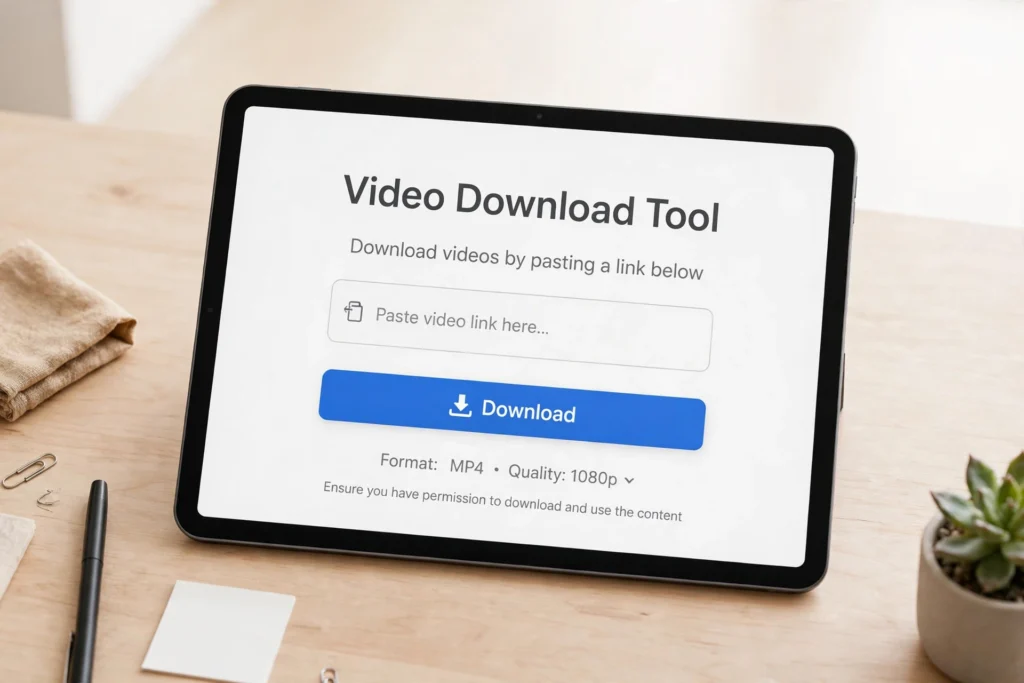
A tablet sits between a phone and a laptop: a bigger screen than a phone, but without a full computer file system. Downloading on a tablet therefore needs its own workflow. This guide shows how to download a TikTok video on a tablet, where to find the saved file, and how tablet features like split screen can make the process easier.
Use SSS TikTok Downloader in your tablet browser. The same browser page works on iPad and Android tablets, so you do not need a separate tablet app.
Step-by-Step: Download on a Tablet
- Open TikTok in the tablet browser. Use Safari on iPad or Chrome on an Android tablet, and open the public video you want. The larger screen makes it easier to confirm you have the right video before you copy anything.
- Copy the video link. Use Share, then Copy link. On a tablet, long-press the address bar if you opened the video page directly, and copy the full address.
- Use split screen if your tablet supports it. Put TikTok on one side and the browser downloader on the other. This tablet-only trick means you can see the video title while you paste the link, which reduces copy mistakes.
- Paste the link into the tool. Open SSS TikTok Downloader in the second window or a new tab, paste the link, and start the download. Choose the video file, not a preview.
- Choose where to save it. Your tablet may ask whether to save to Downloads, Files or a cloud folder. Choose Downloads first, so you can find the file quickly, then move it later if you prefer a different folder.
- Play the saved file on the big screen. Open the file in Files or your gallery app, play it, and check picture and sound. A tablet screen is ideal for spotting a blurry or wrong file before you share it.
Tablet Storage Tips
- Check free space first. Tablets often have less free storage than laptops. A few long videos can fill a small tablet quickly, so delete old downloads you no longer need.
- Use Files, not just Gallery. On iPad, the Files app is the most reliable place to find a browser download. On Android tablets, look in Files, then Downloads.
- Move finished videos to a folder. Create a TikTok Saved folder in Files, and move completed downloads there. That keeps Downloads from becoming a mixed list you cannot search.
After Downloading: Show It in Your Gallery
If the file is in Files but not in your gallery app, follow the phone steps adapted for tablets in how to save a downloaded TikTok video to iPhone Photos and Android Gallery. The tablet steps are the same in principle: find the file in Files, then save or move it to Photos or Gallery.
Safety Note
Only download public videos on your tablet, and only reuse or repost a video if it is your own or you have the creator’s permission. A tablet shared with family or classmates is not a private archive: keep downloaded files in your own folder, and do not share other creators’ work as your own. See safe use of TikTok downloads and creator rights.
Frequently Asked Questions
Is downloading on a tablet different from a phone?
The core steps are the same, but the tablet’s larger screen, Files app and split-screen view make copying, checking and organising easier. The file location is the main difference: check Files first on a tablet.
Why can I not find my tablet download?
Browser downloads on a tablet usually go to Downloads inside Files, not straight to Gallery. Open Files, then Downloads, and look for the most recent file by date.
Can I download on a tablet without an app?
Yes. The browser workflow in this guide needs no app install. You only need a tablet browser, the video link and enough free storage.
Does split screen work on every tablet?
Most modern iPads and Android tablets support split screen or a floating window, but the exact gesture differs by model. If split screen is not available, simply switch between two browser tabs instead.

Content team at SSS-Tik. Sharing helpful guides, tips and updates for a better video experience.