
How to Download a TikTok Video on a Smart TV for Big-Screen Viewing
 By SSS-TIK•
•
3 min read
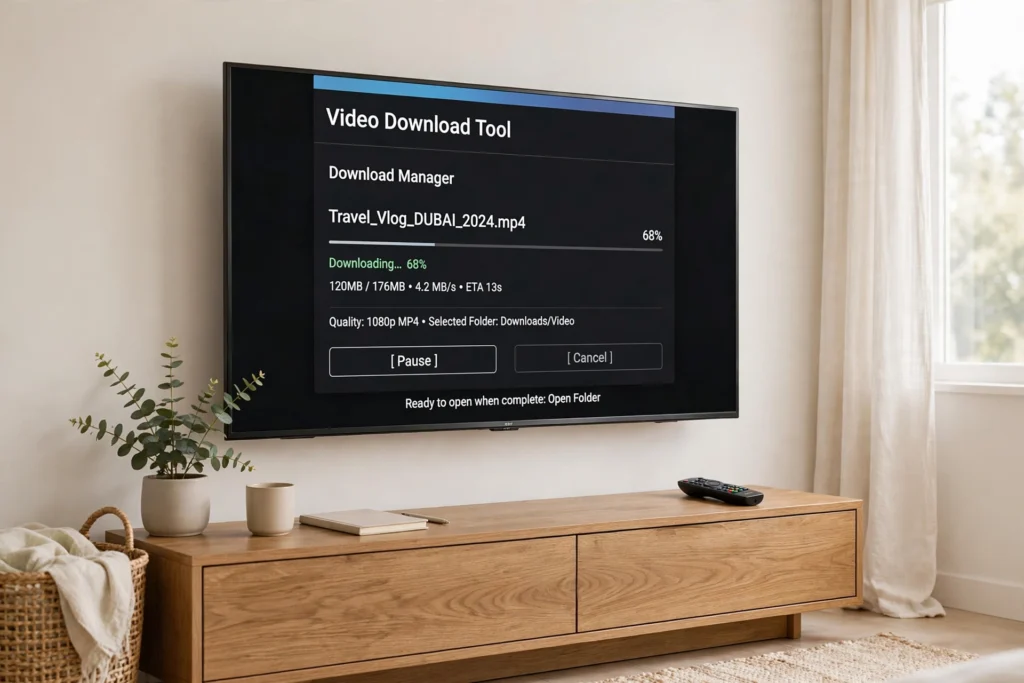
Watching a favorite TikTok clip on a phone is fine, but a Smart TV makes it feel like a short film. If you want to enjoy a creator’s work on a bigger screen, the cleanest route is to download the TikTok video first, then play the saved file on your television. In this guide, you will learn how to do that safely, using SSS TikTok Downloader to get a clean, high-quality copy for personal viewing.
Can You Download a TikTok Video Directly on a Smart TV?
Most Smart TVs do not have a built-in TikTok downloader, and their browsers are often slow for this kind of task. The practical method is to download on your phone or computer first, then send or play the file on the TV. That keeps the process simple and avoids installing unknown apps on your television.
Steps: Download a TikTok Video for Big-Screen Viewing
- Open TikTok on your phone, find a public video you have permission to view, and tap Share, then Copy link.
- Open your browser and go to SSS TikTok Downloader, then paste the copied link into the download box.
- Choose the download option, save the TikTok video without watermark to your phone or computer, and check that it plays correctly.
- Send the file to your TV. Use casting, a USB drive, or your TV’s media player app, depending on what your television supports.
- Open the file on the TV, switch to full screen, and enjoy the big-screen viewing experience with friends or family.
Ways to Play the Downloaded Video on Your TV
Casting: Cast from your phone to a Chromecast, AirPlay, or Miracast-enabled TV. USB drive: Copy the MP4 file to a USB stick, plug it into the TV, and open it in the media player. Home network: If your TV can browse shared folders, place the file in a shared folder and stream it over your home Wi-Fi. If one method stutters, try another; a lower-resolution copy often plays more smoothly on older TVs.
Tips for Better Big-Screen Quality
Download the highest quality available, keep the original aspect ratio, and avoid stretching a vertical video to fill the whole screen if it looks distorted. Sit a little farther back than you would for a phone, turn up the TV volume, and close other apps on the TV so playback stays smooth. For related device guides, see How to Download a TikTok Video on Desktop PC (Windows and Mac) and How to Save a Downloaded TikTok Video to iPhone Photos and Android Gallery.
Safety Note
Only download public videos, and only reuse a clip if it is your own or you have the creator’s permission. Downloading for private, personal viewing is very different from reposting someone else’s work as your own.
FAQ
Can I download TikTok directly on my Smart TV browser? Sometimes, but it is usually easier and more reliable to download on a phone or PC first and then cast or transfer the file.
Why does my video look blurry on a TV? A small phone screen hides softness that a large TV reveals. Download the best quality available and avoid re-compressing the file.
Do I need a TikTok app on the TV? No. Once the file is saved, your TV’s own media player, casting feature, or USB playback is enough.

Content team at SSS-Tik. Sharing helpful guides, tips and updates for a better video experience.